There’s nothing quite as frustrating as finally shelling out serious cash for a high-end graphics card, eagerly booting up your favorite AAA game, and realizing the performance just doesn’t match expectations. You were hoping for buttery-smooth gameplay at ultra settings. Instead, you’re staring at frame rates that feel stuck in the past.
You double-check everything. The GPU is powerful. The RAM is decent. Your setup looks like it should handle anything you throw at it. Yet in intense firefights or crowded scenes, the game stutters. Even worse, performance monitoring shows your expensive GPU barely working while FPS refuses to climb. leaving you wondering whether a Bottleneck Calculator might reveal what’s holding your system back.
If this sounds familiar, your hardware probably isn’t broken. You’re likely dealing with a PC bottleneck, a common but often misunderstood performance issue that affects both budget builds and high-end gaming rigs. The good news? You don’t always need new hardware to fix it.
What Is a Bottleneck?
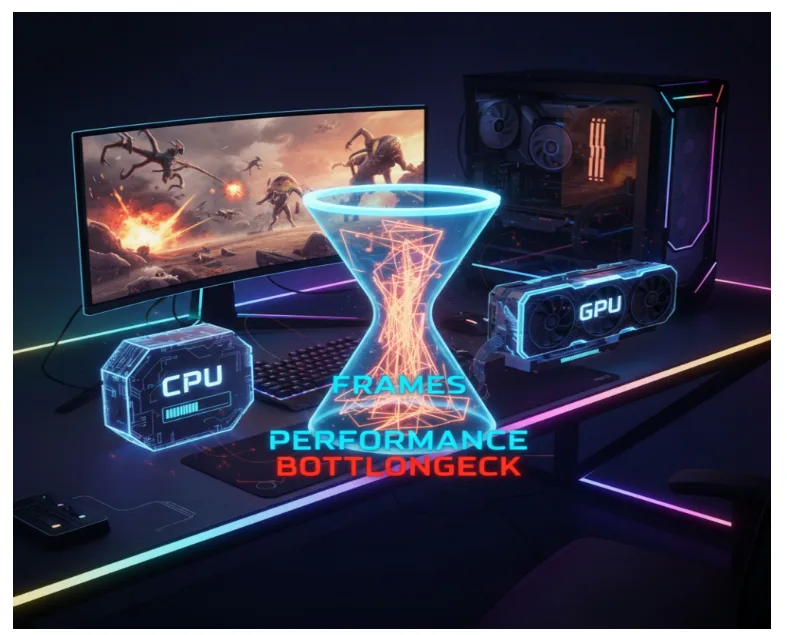
A bottleneck happens when one component in your PC limits the performance of the rest, preventing your system from reaching its full potential.
Think of your PC as a team. The CPU handles decision-making, game logic, and physics—it’s the brain. The GPU is responsible for visuals—it’s the muscle. If the CPU can’t process data fast enough, the GPU ends up waiting, even if it’s capable of rendering far more frames. That’s a CPU bottleneck.
On the flip side, a GPU bottleneck occurs when the CPU delivers data faster than the graphics card can render it. In gaming, a slight GPU bottleneck is usually fine and even desirable. A CPU bottleneck, however, is what typically causes stuttering, frame drops, and inconsistent performance.
How Bottlenecks Kill Your Gaming FPS
When your system isn’t balanced, the symptoms go beyond just a low FPS number.
Frame Drops and Micro-Stuttering
You might see high FPS while walking through empty areas, only for the game to freeze briefly during action-heavy moments. This happens when the CPU suddenly maxes out trying to process AI, physics, and game logic all at once, leaving the GPU waiting.
High CPU Usage, Low GPU Usage
One of the clearest signs of a CPU bottleneck is seeing your processor hit 90–100% usage while your GPU sits at 40–60%. You paid for a powerful graphics card, but your CPU isn’t letting it stretch its legs.
Resolution Matters More Than You Think
Lower resolutions like 1080p push the CPU harder because the GPU can render frames very quickly. At higher resolutions such as 1440p or 4K, the GPU has more work to do, which can actually reduce CPU strain. That’s why some systems feel smoother at higher resolutions despite lower average FPS.
How to Identify a Bottleneck
You don’t need expensive software to diagnose the issue. A few simple tools can reveal what’s holding your system back.
Task Manager
Open Task Manager (Ctrl + Shift + Esc), head to the Performance tab, and monitor CPU and GPU usage while gaming. If the CPU is constantly maxed out while GPU usage stays low, a CPU bottleneck is likely.
MSI Afterburner
MSI Afterburner with RivaTuner lets you track performance in real time through an on-screen display. Ideally, GPU usage should sit around 95–99%. If it drops significantly while CPU usage spikes, you’ve found the problem.
In-Game Performance Metrics
Many modern games include built-in telemetry or benchmarking tools. These can clearly show which component struggles during demanding scenes.
Bottleneck Calculators
Online tools like bottleneck checker can estimate potential mismatches by comparing your CPU and GPU. While results vary depending on the game engine, these tools offer a useful baseline to spot obvious hardware imbalances.
How to Fix Bottleneck Issues
Before rushing out to buy new components, try these practical fixes.
Adjust Graphics Settings
If you’re CPU-limited, shifting more load to the GPU can help:
- Increase resolution if your monitor supports it
- Turn up GPU-heavy settings like textures and anti-aliasing
- Lower CPU-intensive options such as draw distance, physics, or crowd density
Close Background Applications
Browsers, overlays, and background apps quietly consume CPU resources. Closing them can free up processing power and smooth gameplay instantly.
Enable XMP or DOCP in BIOS
Many systems run RAM at default speeds unless XMP (Intel) or DOCP (AMD) is enabled. Faster memory improves CPU performance and can noticeably reduce bottlenecks.
Upgrade Smartly
If tuning doesn’t help, upgrade the component that’s actually limiting performance. Avoid pairing a modern GPU with an outdated CPU. Also, consider your game preferences—simulation titles lean heavily on the CPU, while visually rich games rely more on the GPU.
Plan Balanced Builds
Before upgrading or replacing expensive parts, it’s wise to check the Bottleneck on PC and understand which component is truly limiting performance. Balanced systems always deliver smoother gameplay.
Final Thoughts
Bottlenecks are a normal part of PC gaming. There will almost always be one component working harder than the rest. The goal isn’t to eliminate bottlenecks entirely—it’s to manage them so they don’t ruin your experience.
If your games feel smooth and responsive, don’t obsess over numbers. But if stuttering or low FPS shows up on capable hardware, a little troubleshooting can go a long way. Often, the fix is just a few smart adjustments away.